 MailPilot for Outlook · coming to the Outlook add-in store
Turn notes into perfect emails
— without leaving Outlook.
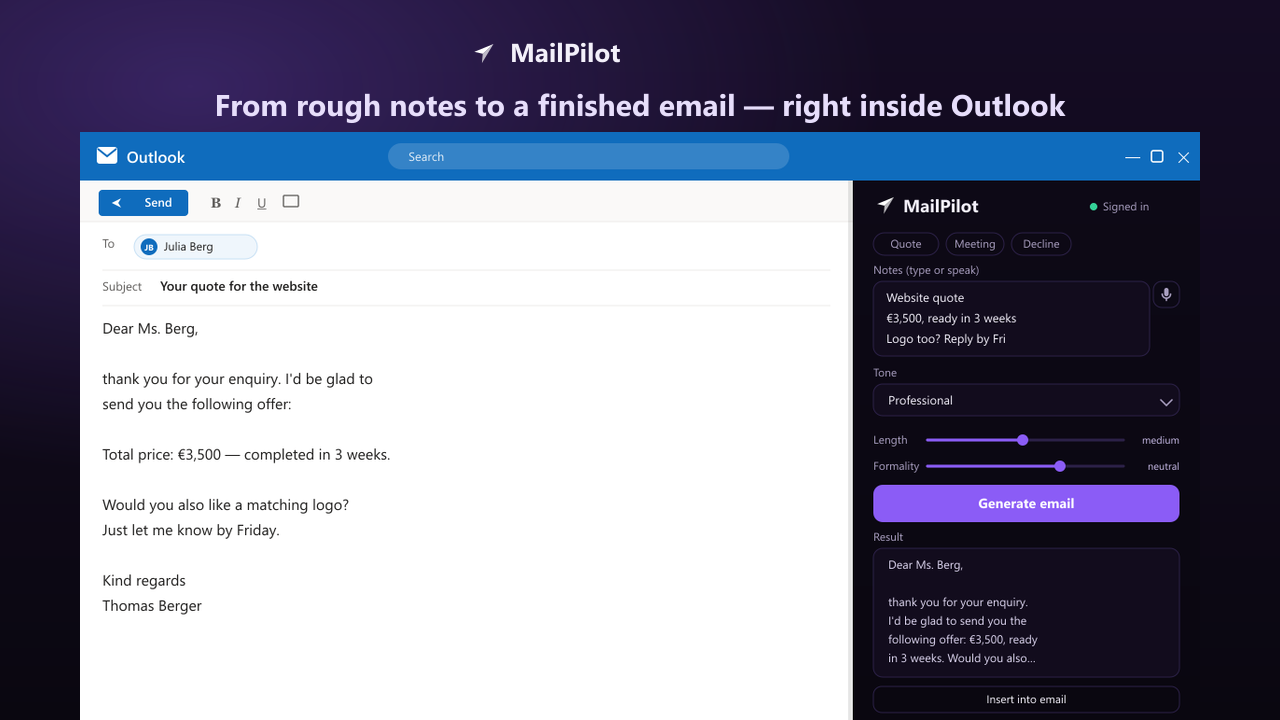
MailPilot's AI sits right in your Outlook compose window. Type a few bullet points, get a complete, professional email — then review, tweak and send.
Free daily quota · works on Microsoft 365 & Outlook.com mailboxes
Everything you need to write better emails, faster
One small panel, a lot less typing.
From notes to email
Type a few bullet points — get a finished, well-written email in seconds.
Reply mode
Paste the email you received and your key points; MailPilot drafts a fitting reply.
Your tone & length
Professional, friendly, formal or casual — fine-tune with simple sliders.
One-click refine
Make it friendlier, shorter, more formal or more assertive instantly.
15+ languages
Send your email translated, with the structure preserved.
Name & signature
Set them once — inserted automatically. No more [Name].
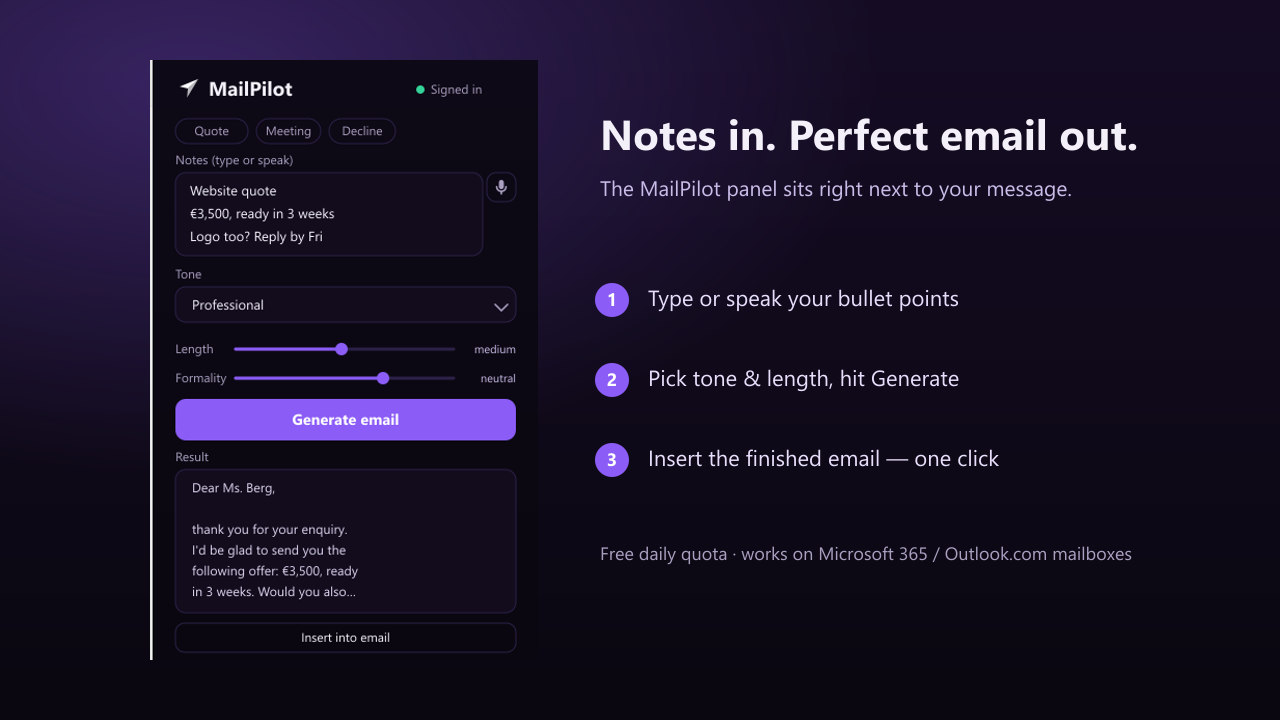
Three steps inside your inbox
Notes in. Perfect email out.
Install MailPilot in Outlook
Bald per Ein-Klick im Outlook-Store. Schon jetzt selbst hinzufügen:
Diese Manifest-URL wird beim „Aus URL/Datei hinzufügen“-Schritt eingefügt.
Neues Outlook & Outlook im Web
- Zahnrad (Einstellungen) öffnen und „Add-Ins abrufen“ suchen.
- Links auf „Meine Add-Ins“.
- Unten „Benutzerdefiniertes Add-In hinzufügen“ → „Aus Datei/URL“.
- Die Manifest-URL (oben) einfügen und installieren.
Klassisches Outlook (Windows)
- Neue E-Mail öffnen.
- „Add-Ins abrufen“ / „Add-Ins verwalten“.
- „Meine Add-Ins“ → „Benutzerdefiniertes Add-In“ → „Aus URL“.
- Manifest-URL einfügen, installieren.
Hinweis: Add-ins funktionieren auf Microsoft-365-/Outlook.com-Postfächern (nicht auf IMAP/Gmail).
Fragen? info@mailpilot-ai.com · MailPilot home · Privacy · Terms